Affiliate Disclosure: As an Amazon Associate, we earn from qualifying purchases. This review contains affiliate links at no extra cost to you. Our recommendations are always independent and unbiased. Last Updated: May 2026
The best drawing tablets 2026 span two completely different categories — pen displays (tablets with screens you draw directly on) and screenless pen tablets (you draw on the surface and watch your monitor) — and choosing the wrong type is the most common mistake first-time buyers make. The five products on this list cover every skill level and budget: the Wacom Intuos Pro Medium is the gold standard screenless pen tablet for professionals — with the fully customisable Pro Pen 3, 8,192 pressure levels, Bluetooth 5.3, a 16-hour battery, and a machined magnesium body at just 4mm thin; the XP-Pen Artist 12 Gen 3 is the best value pen display under $250 — a 12-inch screen tablet with the new X4 Smart Chip Stylus delivering 16,384 pressure levels and a 2g activation force at a fraction of the Cintiq price; the Huion Kamvas 13 Gen 3 is the best beginner pen display — PenTech 4.0 with 16,384 pressure levels, Canvas Glass 2.0 anti-sparkle surface, 99% sRGB, dual dials, and factory colour calibration at under $250; the Wacom One 14 is the easiest pen display to set up — a 14-inch display with Wacom’s trusted driver quality, single USB-C cable, and $299 entry price for buyers coming to pen displays for the first time; and the XP-Pen Deco Pro Medium Gen 2 is the best value screenless pen tablet — 16,384 pressure levels, Bluetooth 5.0, wireless ACK05 remote, and a paper-like One Paper surface at under $160. The ClarityPick Experts verified every pressure level claim, activation force spec, display resolution, colour gamut, connectivity option, and software compatibility across all 5.
🖊️ Pen Display vs. Screenless Tablet — Which Type Do You Need?
This is the single most important decision when buying a drawing tablet, and it affects every other choice. Understanding the difference prevents the most common buyer mistake.
🖥️ Pen Display — Draw Directly on Screen
A pen display has a built-in screen — you draw directly on the display surface and see your strokes appear exactly where your pen touches, like drawing on paper. The XP-Pen Artist 12 Gen 3, Huion Kamvas 13 Gen 3, and Wacom One 14 on this list are all pen displays. They are more intuitive for beginners because hand-eye coordination is immediate. They cost more than screenless tablets for equivalent pen quality. They require a connected computer to function — they are not standalone devices.
🎨 Screenless Pen Tablet — Draw on Surface, Watch Monitor
A screenless pen tablet has no display — you draw on a flat surface while watching your monitor, like using a mouse. The Wacom Intuos Pro and XP-Pen Deco Pro Gen 2 on this list are screenless tablets. They are less intuitive initially but most professional artists prefer them for ergonomics — no neck strain from looking down, and the cursor precision is often higher. They deliver better pen quality for the money, allow you to use your main monitor at full resolution, and are more portable.
📏 What Pressure Levels Actually Mean
Pressure sensitivity determines how precisely the tablet detects how hard you press the pen — affecting line thickness, brush opacity, and stroke weight. 8,192 levels (Wacom Intuos Pro, Wacom One 14) is the professional standard and sufficient for any artwork. 16,384 levels (XP-Pen Artist 12 Gen 3, Huion Kamvas 13 Gen 3, XP-Pen Deco Pro Gen 2) doubles this — the real-world difference is most noticeable in very light strokes and feathered edges. Activation force (how lightly the pen responds) matters as much as pressure count — a 2g activation force (XP-Pen X4, Huion PW600L) is more responsive than a higher activation force at equivalent pressure levels.
📐 Active Area Size — How to Match Tablet to Monitor
For screenless tablets, the active drawing area should roughly match the aspect ratio of your monitor — not necessarily the same physical size. A 10×6 inch active area on a 24-inch monitor means each inch of tablet movement covers proportionally more screen. Most professionals on 24-27 inch monitors use medium-size tablets (roughly 10×6 to 11×7 inches). Larger tablets are better for large monitors and sweeping brush strokes; smaller tablets are better for precision work and portability. For pen displays, the screen IS the active area — what you see is what you draw on.
Bottom line: If you are a complete beginner who wants the most intuitive start — choose a pen display (XP-Pen Artist 12 Gen 3, Huion Kamvas 13 Gen 3, or Wacom One 14). If you are a professional, photo editor, or experienced artist who wants the best pen quality for the money and ergonomic comfort — choose a screenless tablet (Wacom Intuos Pro or XP-Pen Deco Pro Gen 2). Both types require a connected computer to function.
Quick Comparison: Best Drawing Tablets 2026
| Rank |
Tablet |
Type |
Pressure Levels |
Active Area / Screen |
Wireless |
Best For |
| 🥇 #1 |
Wacom Intuos Pro Medium |
Screenless |
8,192 |
10.4 × 5.8 in |
BT 5.3 ⭐ 16hr |
Best pro screenless, best pen quality |
| 🥈 #2 |
XP-Pen Artist 12 Gen 3 |
Pen Display ⭐ |
16,384 ⭐ |
11.9 in 1080p |
No (wired) |
Best value display under $250 |
| 🥉 #3 |
Huion Kamvas 13 Gen 3 |
Pen Display |
16,384 ⭐ |
13.3 in 1080p |
No (wired) |
Best beginner display, larger screen |
| #4 |
Wacom One 14 |
Pen Display |
4,096 |
14 in 1080p ⭐ |
No (wired) |
Easiest setup, Wacom drivers, $299 |
| #5 |
XP-Pen Deco Pro Medium Gen 2 |
Screenless |
16,384 ⭐ |
9 × 6 in (Medium) |
BT 5.0 ⭐ |
Best value screenless, budget pick |
🏆 ClarityPick Editor’s Choice Awards — May 2026
🥇 Best Professional Tablet: Wacom Intuos Pro Medium (2025)
Creative Bloq called the 2025 Wacom Intuos Pro “the gold standard for pen tablets” after three weeks of testing, confirming it “remains the go-to choice for professionals in digital art and graphic design.” The 2025 redesign is a complete rebuild of the 2017 model — thinner (4mm at its thinnest), lighter, with a larger active drawing area in a smaller footprint, and the new Pro Pen 3 replacing the Pro Pen 2. The Pro Pen 3’s defining feature is full modularity: grip width (slim, straight, or flared), balance weight, and side button layout are all physically adjustable — no other pen on this list offers this. Bluetooth 5.3 enables dual-device switching between two computers without re-pairing. Ten customisable ExpressKeys and two mechanical dials are located at the top for both left- and right-handed access. Magnesium alloy construction gives it the most premium build quality of any tablet on this list.
🏆 Best Value Pen Display: XP-Pen Artist 12 Gen 3
Digital Camera World confirmed the XP-Pen Artist 12 Gen 3 “performs beyond expectations” for its size and price class, calling the X4 Smart Chip Stylus “impressive” with 16,384 pressure levels and a 2g activation force that “puts it on par with more expensive XPPen pen displays.” Creative Bloq’s editor ranked it a “fantastic budget option” and the first XP-Pen model to ship with the X4 stylus — a complete pen redesign that doubles the pressure levels of its predecessor and cuts first-stroke response time to 30ms. The magnetic stylus holder built into the frame is a first for XP-Pen. Launched October 2025 at approximately $199-240, it is the most recently released product on this list and the highest-value pen display available at its price point.
🏆 Best Beginner Display: Huion Kamvas 13 Gen 3
The Huion Kamvas 13 Gen 3 is the result of three generations of refinement and it shows. Parka Blogs tested it and struggled to list meaningful cons — confirming excellent PW600L pen performance, consistent cursor tracking to the extreme edges, and the highest-quality anti-glare matte surface Huion has produced. The 13.3-inch screen is 1.4 inches larger than the XP-Pen Artist 12 Gen 3 for a similar price, giving more comfortable drawing real estate. PenTech 4.0 with 2g activation force and 16,384 pressure levels matches the XP-Pen on pen performance. Factory colour calibration to ΔE<1.5 and 99% sRGB coverage with a calibration report in the box is a professional-grade touch at a beginner price point. Available in Cosmo Black and Sakura Pink.
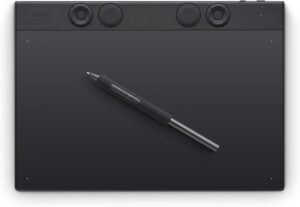
🥇 #1 Wacom Intuos Pro Medium — Best Professional Drawing Tablet 2026
Wacom Intuos Pro Medium (2025)
Screenless pen tablet · Pro Pen 3 (fully modular grip + weight) ⭐ · 8,192 pressure levels · 60° tilt · Battery-free pen · 10.4 × 5.8 in active area · 16:9 format · 10 ExpressKeys + 2 mechanical dials ⭐ · Bluetooth 5.3 dual-device ⭐ · 16-hour battery · 4mm thin at front ⭐ · Magnesium alloy build ⭐ · Windows 10 + macOS 13+ (no Android/ChromeOS) · ~$380–$450
⚠️ Important Changes in the 2025 Model
The 2025 Wacom Intuos Pro Medium removes multi-touch — the finger gesture support present on the 2017 model is gone entirely. If you relied on pinch-to-zoom and rotate with your fingers, this is a significant regression. The ExpressKeys are now located at the top of the tablet (not the left side as before), which may require adjustment for users accustomed to the older layout. Bluetooth connectivity was flagged by some Best Buy reviewers as occasionally dropping — Wacom recommends USB connection for intensive professional work where stability is critical. The 2025 model does NOT support Android or ChromeOS — Windows 10 and macOS 13 or later only. If you need Android or ChromeOS compatibility, the XP-Pen Deco Pro Gen 2 supports both.
Best for: Professional digital artists, illustrators, graphic designers, and photo editors who want the industry gold standard in pen quality — the Pro Pen 3’s modular grip, 8,192 pressure levels, and industry-leading driver stability make this the most refined drawing experience available in a screenless tablet in 2026. Also ideal for professionals who move between two computers and want wireless dual-device switching. Not the right choice for beginners who need the intuitive hand-eye coordination of a pen display.
The Wacom Intuos Pro Medium (2025) is a complete redesign of the 2017 model that held the same product name for eight years. Wacom’s official specs confirm the 10.4 × 5.8-inch active area in a 16:9 format — optimised for modern widescreen monitors — housed in a magnesium alloy body that tapers from 7mm at the back to just 4mm at the front edge. Creative Bloq’s three-week review confirmed it as “the gold standard for pen tablets in 2025” with “precise edge-to-edge tracking” and “smooth and predictable” tilt response. The 5,080 LPI resolution and virtually zero latency in wired mode were confirmed by multiple professional reviewers.
The Pro Pen 3 is the headline feature. Unlike every other pen on this list, the Pro Pen 3 is physically modifiable: grip sleeves (slim, standard, or flared) change the diameter; a removable weight insert adjusts balance; and the side button module can be repositioned. Wacom confirmed the pen supports 8,192 pressure levels, 60° tilt in all directions, and 3 programmable side buttons — and it draws power from the tablet via electromagnetic resonance, requiring no charging. The Wacom Center software enables per-application shortcut profiles — your Photoshop setup can differ from Blender, Clip Studio, or Illustrator. Creative Bloq noted the Wacom Center is “clean, responsive, and far easier to navigate than past versions.” Bluetooth 5.3 enables simultaneous pairing to two computers with a single hardware switch to toggle between them — a meaningful workflow feature for professionals who use a desktop and laptop.
✓ Pros
- Pro Pen 3 — fully modular grip, weight, and button layout
- Industry-leading Wacom driver quality and stability
- Bluetooth 5.3 with dual-device switching between 2 computers
- 16-hour wireless battery life
- Magnesium alloy build — 4mm thin, extremely portable
- 10 ExpressKeys + 2 mechanical dials
- Compatible with third-party EMR pens (LAMY, Pilot, Staedtler)
- Per-application shortcut profiles in Wacom Center
✗ Cons
- Multi-touch removed — no finger gesture support in 2025 model
- Most expensive on this list — ~$380–$450
- No Android or ChromeOS support — Windows/macOS only
- ExpressKeys moved to top — requires adjustment for previous Intuos Pro users
- Bluetooth occasionally drops — some reviewers recommend wired for intensive work
- Screenless — requires a learning curve for hand-eye coordination
💡 ClarityPick Verdict: The Wacom Intuos Pro Medium (2025) is the best professional drawing tablet of 2026. The Pro Pen 3’s modular customisation, industry-gold-standard driver software, Bluetooth 5.3 dual-device switching, and magnesium build quality justify the premium price for working professionals. The removal of multi-touch is a genuine regression — factor this in if you relied on finger gestures. For beginner artists who want to draw on a screen, choose the Huion Kamvas 13 Gen 3 or XP-Pen Artist 12 Gen 3.
Check Current Price on Amazon →
Price changes daily — click to see today’s price
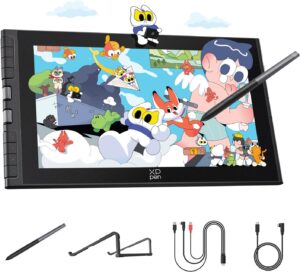
🥈 #2 XP-Pen Artist 12 Gen 3 — Best Value Pen Display Under $250 2026
XP-Pen Artist 12 Gen 3 (CD121FH)
Pen display · X4 Smart Chip Stylus ⭐ · 16,384 pressure levels ⭐ · 2g activation force ⭐ · 30ms response time ⭐ · 60° tilt · 11.9-inch FHD (1920×1080) · 99% sRGB / 97% Adobe RGB · 260 nits · Laminated display · 8 hotkeys + 2 X-Dials ⭐ · Magnetic pen holder ⭐ · Windows, macOS, Linux, Android, ChromeOS · 719g · ~$199–$240 · Launched October 2025
ℹ️ Not a Standalone Tablet
The XP-Pen Artist 12 Gen 3 is a pen display — it requires a connected computer (PC, Mac, Android with USB 3.1 DP1.2, ChromeOS, or Linux) to function. It is not a standalone drawing device. Single-cable USB-C connection works with computers that have USB-C ports supporting DisplayPort Alt Mode. For computers with older ports, the included 3-in-1 cable (USB-C video + USB-A data + power) is required. No pen stand is included in the box — the magnetic strip on the tablet body stores the pen magnetically, but there is no upright pen stand. The XP-Pen driver is required for full functionality and must be downloaded from XP-Pen’s website. Creative Bloq noted the driver app is “functional but slightly clunky” to configure initially — once set up, performance is reliable.
Best for: Beginning to intermediate digital artists, students, illustration students, and content creators who want a pen display with professional-grade stylus performance at under $250. The X4 Smart Chip Stylus’s 16,384 pressure levels and 2g activation force deliver precision typically seen on displays costing twice as much. Ideal for artists who prioritise pen feel and portability (719g) over screen size.
The XP-Pen Artist 12 Gen 3 launched in October 2025 as the first XP-Pen product to ship with the new X4 Smart Chip Stylus — and it is the pen that makes this display stand out. Creative Bloq confirmed the X4 “doubles the pressure levels to 16,384, lowers the activation force to 2g, and cuts the first-stroke response time to just 30ms” compared to the previous X3 chip. The practical result, per Creative Bloq’s in-depth testing across Photoshop and ArtRage 6, is that “the stylus captured light taps and micro-pressure changes with impressive precision” — the pen can create the smallest dots and faintest strokes with no perceptible lag. Parka Blogs measured the active accuracy at ±0.2mm at the centre of the screen and confirmed “cursor tracking is excellent right up to the extreme edges.”
The 11.9-inch FHD display (1920×1080) is fully laminated — the screen glass is bonded directly to the display panel, eliminating parallax and ensuring strokes appear exactly where the nib touches. Parka Blogs measured 100% sRGB and 96% Adobe RGB coverage with their Spyder calibrator, closely matching XP-Pen’s claimed 99% sRGB and 97% Adobe RGB. The matte etched glass surface provides a paper-like texture that resists fingerprints. Two X-Dial rotary dials are a new addition to the Gen 3 — one assigned to canvas rotation, the other to brush size by default, both fully customisable in the driver. The magnetic pen holder snaps the stylus securely to the top edge of the display — a first for XP-Pen and a genuinely useful feature for desk organisation. Apple Insider confirmed excellent macOS driver customisation, calling it “a breath of fresh air” for Mac compatibility.
✓ Pros
- X4 Smart Chip Stylus — 16,384 pressure, 2g IAF, 30ms response
- First XP-Pen with magnetic pen holder
- Laminated display — no parallax
- 99% sRGB / 97% Adobe RGB — independently verified
- 8 hotkeys + 2 X-Dial rotary controls
- Supports Windows, macOS, Linux, Android, ChromeOS
- Single USB-C cable connection on compatible computers
- 719g — highly portable
✗ Cons
- 11.9-inch screen — smaller than Huion Kamvas 13 Gen 3 and Wacom One 14
- 260 nits brightness — not suitable for brightly lit environments
- XP-Pen driver requires initial setup effort — not plug-and-play
- No upright pen stand included — magnetic strip only
- No wireless connectivity — wired only
- Plastic build — less premium feel than the Wacom Intuos Pro
💡 ClarityPick Verdict: The XP-Pen Artist 12 Gen 3 is the best value pen display of 2026 under $250. The X4 Smart Chip Stylus delivers 16,384 pressure levels and a 2g activation force at a price point previously occupied by 8,192-level pens — Digital Camera World and Creative Bloq both confirmed it performs beyond its price class. The 11.9-inch screen is compact; if you want more drawing real estate at a similar price, the Huion Kamvas 13 Gen 3’s 13.3-inch screen is the next step up.
Check Current Price on Amazon →
Price changes daily — click to see today’s price
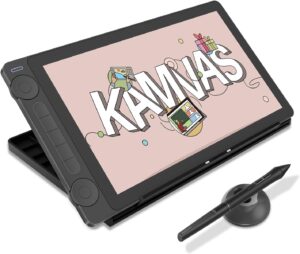
🥉 #3 Huion Kamvas 13 Gen 3 — Best Beginner Pen Display 2026
Huion Kamvas 13 Gen 3
Pen display · PW600L pen (PenTech 4.0) ⭐ · 16,384 pressure levels ⭐ · 2g IAF · 60° tilt · 13.3-inch FHD (1920×1080) · Canvas Glass 2.0 anti-sparkle ⭐ · 99% sRGB / 90% Adobe RGB · ΔE<1.5 factory calibration ⭐ · 5 programmable keys + 2 dials ⭐ · Dual USB-C · Windows, macOS, Android, Linux · 865g · Cosmo Black / Sakura Pink · ~$224–$249
ℹ️ Stand and Cable Notes
The Huion Kamvas 13 Gen 3 does not include a stand in the standard box — the foldable stand is an optional add-on at approximately $18 extra at checkout. The Gadgeteer’s reviewer strongly recommended purchasing it: “My advice is to get it. It’s adjustable and takes up no extra room.” A single USB-C to USB-C cable is also not included in the standard box — Huion includes the 3-in-1 cable only. The single USB-C cable (cleaner setup for laptops) is sold separately. The USB-C port must support USB 3.1 Gen1 and DisplayPort 1.2 for single-cable video connection. Response time is rated at 25ms — slightly slower than the XP-Pen Artist 12 Gen 3’s 30ms by spec, though the real-world difference is imperceptible for most drawing tasks.
Best for: First-time pen display buyers and intermediate artists who want a larger 13.3-inch screen, professional PenTech 4.0 stylus performance, factory-calibrated colour accuracy, and dual dial controls at under $250. The Kamvas 13 Gen 3 is consistently recommended by reviewers for its balance of price, display quality, and pen feel. A good choice for illustration, animation, comics, and photo editing on Mac or Windows.
The Huion Kamvas 13 Gen 3 is the third generation of Huion’s most popular compact pen display, and Parka Blogs’ independent test — which measured 98% sRGB and 84% Adobe RGB with a Spyder X2 Ultra calibrator alongside 288 nits maximum brightness — confirmed genuine colour accuracy for a display at this price. The Canvas Glass 2.0 anti-sparkle surface is a matte etched glass that provides a paper-like drawing texture while minimising the grain or colour noise that inferior matte surfaces introduce. Huion’s specs confirm factory calibration to ΔE<1.5 — professional colour accuracy — with a calibration report included in every unit’s box. Huion includes this calibration report at a price point where most competitors skip it entirely.
The PW600L pen uses PenTech 4.0 with an HV200 chip, 16,384 pressure levels, and 2g initial activation force — matching the XP-Pen Artist 12 Gen 3’s X4 on the key pen specifications. Parka Blogs confirmed tilt works correctly at ±60° and cursor tracking is reliable to the extreme edges of the screen. The Kamvas 13 Gen 3 is 8% smaller overall than the Gen 2 despite maintaining the same 13.3-inch screen — reduced by a slimmer bezel — and weighs 865g. MacSources confirmed the driver allows per-application customisation of the 5 shortcut keys, 2 dials, and pen buttons. The dual USB-C port design supports both single-cable and 3-in-1 cable connections for broad device compatibility. Available in both Cosmo Black and Sakura Pink — the only pen display on this list offered in a second colour option.
Surface ⭐
Canvas Glass 2.0
✓ Pros
- 13.3-inch screen — larger than XP-Pen Artist 12 Gen 3 at similar price
- PenTech 4.0 — 16,384 pressure, 2g IAF, professional pen tech
- Factory colour calibration ΔE<1.5 — calibration report in box
- Canvas Glass 2.0 anti-sparkle — excellent matte surface texture
- 5 programmable shortcut keys + 2 dials
- Dual USB-C — single cable or 3-in-1 cable flexibility
- Available in Cosmo Black and Sakura Pink
- Windows, macOS, Android, Linux compatible
✗ Cons
- Stand not included — sold separately at ~$18
- Single USB-C cable not included — 3-in-1 cable only in box
- 90% Adobe RGB — lower than XP-Pen Artist 12 Gen 3’s 97% Adobe RGB
- No wireless connectivity
- Pen sounds hollow when tapped — noted by GBAtemp reviewer
- 1080p resolution on 13.3 inches — lower pixel density than 2.5K alternatives
💡 ClarityPick Verdict: The Huion Kamvas 13 Gen 3 is the best beginner pen display of 2026 for buyers who want a larger 13.3-inch screen, professional PenTech 4.0 stylus performance, and factory colour calibration at under $250. Add the foldable stand at checkout — it’s worth the extra $18. If you want a slightly smaller but newer pen with a magnetic holder, the XP-Pen Artist 12 Gen 3 is the alternative at a similar price.
Check Current Price on Amazon →
Price changes daily — click to see today’s price
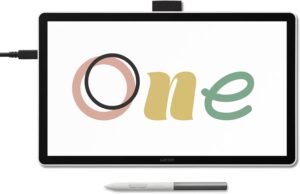
#4 Wacom One 14 — Best Entry-Level Pen Display for Beginners 2026
Wacom One 14 (DTC-141)
Pen display · Wacom One Standard Pen · 4,096 pressure levels · 60° tilt · 14-inch FHD (1920×1080) ⭐ (largest on this list) · 98% sRGB · 285 nits · Direct-bonded display · Single USB-C ⭐ · Windows 10+, macOS 13+, ChromeOS · 1.65 lbs · 3 replacement nibs included · 6-month Clip Studio Paint Pro trial ⭐ · ~$299
⚠️ Critical Limitations vs. Competitors at This Price
The Wacom One 14 uses the Wacom One Standard Pen with only 4,096 pressure levels — half the pressure sensitivity of the XP-Pen Artist 12 Gen 3 (16,384) and Huion Kamvas 13 Gen 3 (16,384) at a similar or lower price. This is the most important spec difference on this comparison. HDMI connectivity requires the Wacom Converter Kit accessory ($80, sold separately) — the included USB-C cable does not have an HDMI fallback. The 7P Drawing Tablets review noted that drawing with large brushes near the initial activation force can produce “blobby strokes” — this is manageable via the pressure curve settings but is worth knowing. No shortcut keys or dial are included — there are no express keys on the Wacom One 14 at all, unlike every other tablet on this list.
Best for: Complete beginners who want the reassurance of Wacom’s brand reputation, driver stability, and customer support — and who value the largest screen size on this list (14 inches) at the entry-level $299 price. Also appropriate for photo editors and casual users who primarily use Photoshop or Lightroom and don’t need the highest pressure sensitivity. Not the right choice for buyers who want the best pen performance for their money — at $299, the Huion Kamvas 13 Gen 3 delivers 16,384 pressure levels for less.
The Wacom One 14 is Wacom’s newest entry-level pen display, launched September 2025 as an upgrade to the 2020 Wacom One. Wacom’s official specs confirm the 14-inch FHD (1920×1080) IPS display with a direct-bonded (laminated) surface that minimises parallax — the largest screen of any pen display on this list. The display features an etched anti-glare surface with a paper-like texture that multiple reviewers praised for its natural drawing feel. Notebookcheck confirmed the 285 nits maximum brightness and 98% sRGB colour gamut. Single USB-C cable connectivity — where the cable carries power, video, and data simultaneously — is supported on any computer with a USB-C port that supports DisplayPort Alt Mode.
The Wacom One Standard Pen is battery-free, with 4,096 pressure levels, 60° tilt, and a 360 reports-per-second polling rate. Shutterbug’s reviewer called the pen “natural and intuitive” with “outstanding control” for photo editing in Photoshop. The honest limitation: 4,096 pressure levels is half what the XP-Pen Artist 12 Gen 3 and Huion Kamvas 13 Gen 3 deliver at similar or lower prices — meaning lighter pressure gradations and finer stroke control are more limited. One genuine advantage of the Wacom One 14 is pen ecosystem compatibility — Wacom One pens are available in multiple colours and styles, and the display is compatible with third-party pens from STAEDTLER, LAMY, and Dr. Grip. The included software bundle is generous: a 6-month trial of Clip Studio Paint Pro, plus trials for Magma Blaze, Concepts, and Foxit PDF Editor.
✓ Pros
- 14-inch screen — largest pen display on this list
- Wacom driver quality and stability — industry standard
- Easiest setup — plug in, download driver, draw
- Single USB-C cable connectivity on compatible computers
- Compatible with third-party pens (STAEDTLER, LAMY, Dr. Grip)
- 6-month Clip Studio Paint Pro trial included
- Whisper-quiet — no fan noise confirmed by reviewers
- Paper-like surface texture praised across multiple reviews
✗ Cons
- Only 4,096 pressure levels — half of XP-Pen and Huion at similar prices
- No ExpressKeys or shortcut dials — fewer workflow controls
- HDMI adapter costs $80 extra — sold separately
- No Android support — Windows, Mac, ChromeOS only
- Bluetooth not supported — wired only
- 98% sRGB — good but below competitors’ 99% sRGB
💡 ClarityPick Verdict: The Wacom One 14 is the best entry-level pen display of 2026 for buyers who specifically want Wacom’s brand, driver quality, and the largest 14-inch screen in this price range. The honest trade-off: at $299, the 4,096 pressure levels are outspecced by the Huion Kamvas 13 Gen 3 at $224 (16,384 levels, larger shortcut layout). The Wacom advantage is driver stability, easiest setup, and the reassurance of the Wacom name — genuine value for true beginners who want peace of mind.
Check Current Price on Amazon →
Price changes daily — click to see today’s price
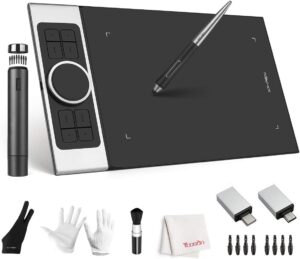
#5 XP-Pen Deco Pro Medium Gen 2 — Best Value Screenless Drawing Tablet 2026
XP-Pen Deco Pro Medium Gen 2
Screenless pen tablet · X3 Pro Stylus ⭐ · 16,384 pressure levels ⭐ · 60° tilt · Eraser on pen tail · 9 × 6 in active area (Medium) · One Paper textured surface ⭐ · Bluetooth 5.0 dual-device ⭐ · ACK05 wireless shortcut remote (sold separately for Medium) · Windows, macOS, Android, ChromeOS, iOS, Linux · ~$130–$160 · 2022
⚠️ ACK05 Remote and Size Notes
The ACK05 wireless shortcut remote is included only with the XLW (Extra Large Wireless) model — it is sold separately for the Medium Gen 2. If you want the shortcut remote with the Medium size, budget for the additional purchase. The Deco Pro Gen 2 does not have express keys built into the tablet body itself — all shortcut functionality relies on the separate ACK05 remote. The 9 × 6-inch active area on the Medium is well-suited to 24-27 inch monitors. For monitors 27 inches and above, the L (11 × 7 inch) or XL (15 × 9 inch) size is recommended for comfortable cursor ratio. The Deco Pro Gen 2 does NOT have multi-touch support — no pinch-to-zoom with fingers. Battery life is rated at 10+ hours wireless — Parka Blogs noted this may require charging if you draw many hours daily.
Best for: Budget-conscious buyers who want a screenless pen tablet with 16,384 pressure levels and Bluetooth wireless connectivity at the lowest price on this list. Ideal for artists who want to use their existing monitor without the cost of a pen display, and for those who prefer the ergonomic benefits of screenless drawing. Also the most device-compatible tablet on this list — supporting Windows, macOS, Android, ChromeOS, iOS, and Linux simultaneously.
The XP-Pen Deco Pro Medium Gen 2 is a screenless pen tablet — you draw on the One Paper textured surface while watching your monitor, like a professional mouse replacement. The X3 Pro Stylus features 16,384 pressure levels and 60° tilt — matching the pressure count of the much more expensive Wacom Intuos Pro’s pressure level count, but going one step further with the added eraser function on the pen tail. Parka Blogs confirmed the pen “supports tilt and 16K levels of pressure sensitivity” with a “firm tip that has minimal movement” on contact and a “fantastic, consistent and predictable” drawing experience. The felt nibs provide a noticeably more paper-like drawing experience than hard plastic nibs.
Bluetooth 5.0 wireless connectivity allows cable-free use with simultaneous pairing to two devices — switching between a desktop and laptop via a single hardware key. Draw Your Weapon’s review confirmed “no increased delay or latency when compared with a wired connection” in wireless mode. The One Paper textured surface is the Deco Pro Gen 2’s defining physical feature — a surface treatment that mimics the texture and drag of drawing on paper, making screenless drawing significantly more tactile than the smooth glass feel of pen displays. At approximately $130–160 for the Medium, it delivers 16,384 pressure levels and wireless connectivity at significantly less cost than the Wacom Intuos Pro — the trade-off being Wacom’s superior driver ecosystem and the Pro Pen 3’s modular customisation.
✓ Pros
- Most affordable on this list — ~$130–$160
- 16,384 pressure levels — matches the most expensive tablets on this list
- Bluetooth 5.0 dual-device — wireless with no added latency
- One Paper textured surface — excellent paper-like feel
- Pen tail eraser — natural flipping motion to erase
- Broadest device compatibility — Windows, macOS, Android, iOS, ChromeOS, Linux
- X-Edge ergonomic wrist rest integrated into tablet body
- Compatible with both Photoshop, Clip Studio, Affinity, Krita
✗ Cons
- ACK05 remote not included with Medium — sold separately
- No screen — requires hand-eye coordination learning curve
- 10+ hour battery — may need daily charging for heavy users
- No multi-touch — no finger gesture support
- Older launch date (2022) — X3 Pro vs newer X4 chip in Artist 12 Gen 3
- Driver quality below Wacom — requires more initial configuration
💡 ClarityPick Verdict: The XP-Pen Deco Pro Medium Gen 2 is the best value screenless drawing tablet of 2026. At ~$130–$160 it delivers 16,384 pressure levels, Bluetooth 5.0 dual-device wireless, a pen tail eraser, and the broadest device compatibility on this list. The missing ACK05 shortcut remote (sold separately for the Medium) is a genuine nuisance — factor this into the purchase if you want keyboard shortcut access. For buyers who want the best screenless tablet regardless of price, the Wacom Intuos Pro Medium remains the professional standard.
Check Current Price on Amazon →
Price changes daily — click to see today’s price
Drawing Tablet Buyer’s Guide 2026
Choosing between the best drawing tablets 2026 has to offer means first deciding on the type (pen display vs. screenless) and then matching the specs to your skill level and budget. Here’s who should choose which.
🎯 Choose Wacom Intuos Pro Medium If…
- You are a working professional who demands the best pen technology available — the Pro Pen 3’s modular customisation, Wacom’s industry-leading driver stability, and per-application shortcut profiles make it the most refined screenless tablet available and the go-to choice for professional illustrators, graphic designers, and photo retouchers
- You move between two computers — Bluetooth 5.3 dual-device switching lets you alternate between desktop and laptop with a single hardware toggle, a workflow feature that no other tablet on this list provides
- Portability and build quality matter — the magnesium alloy body at 4mm thin is the most portable and premium-feeling tablet on this list
🎯 Choose XP-Pen Artist 12 Gen 3 If…
- You want the best pen performance for the money in a pen display under $250 — the X4 Smart Chip Stylus with 16,384 pressure levels and 2g activation force is genuinely at the level of displays costing significantly more, confirmed by Digital Camera World and Creative Bloq
- Portability is a priority — at 719g with a single USB-C cable and a magnetic pen holder, the Artist 12 Gen 3 is the most travel-ready pen display on this list
- You use Linux, Android, or ChromeOS — the Artist 12 Gen 3 supports all five major platforms (Windows, macOS, Linux, Android, ChromeOS) where the Wacom One 14 only supports three
🎯 Choose Huion Kamvas 13 Gen 3 If…
- You want the largest comfortable drawing surface at under $250 — the 13.3-inch screen is 1.4 inches larger than the XP-Pen Artist 12 Gen 3 and gives more comfortable drawing real estate for illustration, painting, and detail work
- Colour accuracy matters for your work — the factory calibration report to ΔE<1.5 included in every box is a professional-grade assurance that few drawing tablets at this price provide
- You want a choice of colours — the Kamvas 13 Gen 3 is available in both Cosmo Black and Sakura Pink
🎯 Choose Wacom One 14 If…
- You are a complete beginner who wants the peace of mind of Wacom’s brand, support infrastructure, and driver quality — Wacom’s drivers are the most stable and widely compatible in the industry, and for someone new to drawing tablets this reduces frustration significantly
- The largest screen on this list is your priority — at 14 inches, the Wacom One 14 offers more drawing real estate than the Huion Kamvas 13 Gen 3 or XP-Pen Artist 12 Gen 3 at a $299 entry price
- You use ChromeOS — the Wacom One 14 is one of the few drawing tablets compatible with Chromebook
🎯 Choose XP-Pen Deco Pro Medium Gen 2 If…
- Budget is the primary constraint and you want a screenless pen tablet with 16,384 pressure levels and wireless connectivity at the lowest possible price — at ~$130–$160 it delivers specifications that rival tablets at twice the price in raw pen performance
- You draw on a mobile device — the Deco Pro Gen 2 is the only tablet on this list with confirmed iOS/iPadOS support for apps like ibisPaint and Medibang Paint, alongside Android compatibility
- You are an experienced artist who already knows how to work with a screenless tablet and wants professional pressure sensitivity without paying the Wacom Intuos Pro premium
📋 Drawing Tablet Checklist 2026
- Decide pen display or screenless first: This is the single most important decision and affects everything else. Beginners generally find pen displays more intuitive because hand-eye coordination is immediate. Experienced artists and professionals often prefer screenless tablets for ergonomics and neck comfort, and get better pen performance per pound spent. If you have never used either type, a beginner’s pen display like the Huion Kamvas 13 Gen 3 is the lower-risk starting point
- Match your tablet to your monitor size (screenless only): The active area aspect ratio should match your monitor — and the physical size should be comfortable for your working style. A 9×6 inch active area (Deco Pro Medium) works well with 24-27 inch monitors. A 10×6+ inch area (Intuos Pro Medium) scales better to 27-inch and above displays. Larger active areas require larger arm movements; smaller areas require smaller, more precise movements
- Check software compatibility before buying: All five tablets on this list support Photoshop, Clip Studio Paint, Krita, and Affinity Photo. Some apps require specific driver settings for pressure sensitivity to work — check your primary software’s compatibility notes for the brand you choose. Wacom has the broadest verified compatibility list; XP-Pen and Huion have improved significantly but may require manual driver configuration for some software
- Pressure levels vs. activation force — both matter: 16,384 pressure levels give finer gradations of stroke thickness and opacity. But activation force (the minimum pressure required to register any stroke) is equally important for soft, delicate work. The 2g activation force on the XP-Pen X4 and Huion PW600L responds to the lightest touch — heavier activation forces require deliberate pressure for thin lines. Both specs together define the usable pressure range
- Driver setup is a one-time task: Every tablet on this list requires a driver download and initial configuration. Wacom’s setup is consistently rated the easiest; XP-Pen and Huion require slightly more initial adjustment but are reliable once configured. Per-application shortcut profiles (available on the Wacom Intuos Pro and XP-Pen/Huion drivers) allow your drawing shortcuts to automatically change when you switch from Photoshop to Clip Studio — a significant workflow improvement worth setting up
Frequently Asked Questions
What is the difference between a drawing tablet and a pen display?
A drawing tablet (screenless pen tablet) has no display — you draw on a flat surface while watching a separate monitor, like a high-precision mouse. A pen display has a built-in screen — you draw directly on the screen and see your strokes where your pen touches, like drawing on paper. The Wacom Intuos Pro Medium and XP-Pen Deco Pro Gen 2 on this list are screenless drawing tablets. The XP-Pen Artist 12 Gen 3, Huion Kamvas 13 Gen 3, and Wacom One 14 are pen displays. Pen displays are more intuitive for beginners because hand-eye coordination is immediate. Screenless tablets are preferred by many professionals for ergonomics and allow better pen quality for the money, but require a learning period to adapt to drawing while watching a separate screen.
Is 8,192 pressure levels enough or do I need 16,384?
8,192 pressure levels — used by the Wacom Intuos Pro and Wacom One 14 — is more than sufficient for professional-level artwork and has been the industry standard for years. The practical difference between 8,192 and 16,384 levels is most noticeable in extremely light strokes, feathered edges, and very fine pressure gradations — the kind of subtle control that benefits highly detailed illustration work. For most digital art, photo editing, graphic design, and animation, 8,192 levels provides all the range you need. 16,384 levels is better in theory; whether you notice the difference in practice depends on your artistic style and the software you use. Both XP-Pen and Huion now offer 16,384 levels at price points previously occupied by 8,192-level tablets — making it increasingly available at no premium.
Are XP-Pen and Huion as good as Wacom?
In 2026, XP-Pen and Huion have closed the gap with Wacom significantly in pen hardware specifications — both brands now offer 16,384 pressure levels, 2g activation forces, and laminated displays at price points Wacom cannot match. Creative Bloq confirmed the XP-Pen Artist 12 Gen 3 “performs beyond expectations” for its class. The remaining areas where Wacom maintains an advantage are driver stability and software compatibility breadth — Wacom’s drivers have decades of refinement and work reliably with virtually every creative application. XP-Pen and Huion drivers have improved substantially but occasionally require more initial configuration, particularly on macOS. For beginners, both brands are excellent value. For professionals who switch frequently between multiple applications and need zero-friction setup, Wacom’s driver ecosystem still leads.
Do drawing tablets work with iPad or iPhone?
Most drawing tablets on this list require a computer (Windows, macOS, Linux, ChromeOS, or Android) to function. The XP-Pen Deco Pro Gen 2 is the only product on this list with confirmed iOS and iPadOS support — but only with specific apps (ibisPaint and Medibang Paint) and requires a compatible Bluetooth connection. The XP-Pen Artist 12 Gen 3 and Huion Kamvas 13 Gen 3 support Android devices with USB 3.1 DP1.2 support. None of the products on this list work with iPad as a standalone drawing tablet in the way an Apple Pencil does — they are computer peripherals, not iPad accessories. If you want to draw on your iPad, the Apple Pencil with an iPad is a separate category from the drawing tablets reviewed here.
What drawing software works with these tablets?
All five tablets on this list are compatible with the major drawing and photo editing applications: Adobe Photoshop, Adobe Illustrator, Clip Studio Paint, Krita (free), Affinity Photo, Affinity Designer, Procreate (on supported platforms), Medibang Paint, ArtRage, Rebelle, Blender, Corel Painter, and most other professional creative software. Pressure sensitivity requires the tablet driver to be installed and may need to be enabled within individual applications — most modern software detects pressure automatically once the driver is active. Krita on Windows has historically required specific driver settings with some non-Wacom tablets; check the Krita documentation for your specific tablet brand. The 6-month Clip Studio Paint Pro trial included with the Wacom One 14 is a particularly generous software bundle for beginners starting their digital art journey.
🏆 Final Verdict — Best Drawing Tablets 2026
These are the best drawing tablets 2026 has to offer — two screenless tablets and three pen displays covering every skill level from beginner to professional.
Best Pro Screenless: Wacom Intuos Pro Medium — Pro Pen 3, BT 5.3 dual-device, magnesium, 16hr battery
~$380–$450
Best Value Display: XP-Pen Artist 12 Gen 3 — X4 pen, 16,384 levels, 2g IAF, magnetic holder, 99% sRGB
~$199–$240
Best Beginner Display: Huion Kamvas 13 Gen 3 — 13.3 in, PenTech 4.0, ΔE<1.5 calibration, Canvas Glass 2.0
~$224–$249
Easiest Entry Display: Wacom One 14 — 14 in, Wacom drivers, single USB-C, Clip Studio trial, $299
~$299
Best Budget Screenless: XP-Pen Deco Pro Medium Gen 2 — 16,384 levels, BT 5.0, pen eraser, One Paper surface
~$130–$160
Affiliate Disclosure: As an Amazon Associate, we earn from qualifying purchases. This review contains affiliate links at no extra cost to you. Our recommendations are always independent and unbiased. Last Updated: May 2026